Showing posts with label wxWidgets. Show all posts
Download Raspberry Pi Toolchain - Cross Compiler
2:51 AM Dedy Yasriady
Develop, test, run your application on Linux desktop, and deploy on Rasberry Pi2 board, x86_64 and other Linux machine.....
Cross compiler application development for Raspberry Pi is now available for Linux. This ide/toolchain known to work and already tested on Ubuntu 14.04-LTS Trusty Tahr.
wget https://raw.githubusercontent.com/dveltool/toolchain/master/installer/dveltool_installer.sh
chmod 755 dveltool_installer.sh
./dveltool_installer.sh
For installation packages, please check on following url:
https://github.com/dveltool/toolchain
Toolchain is generated using awesome build system called buildroot, and make use of prominent eclipse ide.
Please make try this application, and would like to hear your feedback ....
wxRibbon, another sample wxWidgets/GTK2 application running on Raspbian Jessie:
Cross Compile WxWidgets/C++ Application for Raspberry Pi
1:52 AM Dedy Yasriady
How to Build wxWidgets / C++ for Raspberry Pi Model 2 (ARMv7 Architecture).
UPDATED:
For ease to install and configure Eclipse-IDE/Toolchain, use following link of ready used installer:
wxWidgets is an awesome C++/GUI library to work with. It can produce very nice desktop interface and has complete class library either for GUI on non GUI. Binary program yields by this library is also small and portable. Statically linking is possible to make the program running independently to any linux distribution.
Raspberry Pi is credit card sized computer, it has small form factor with capability similar to PC of PIII/900MHz with 1GB RAM. Thus, sufficient to running desktop application, as in his case, Raspbian Wheezy.
Here, you will find brief tutorial how to build wxWidgets for Raspbian to run on Raspberry Pi model 2 (ARMv7 processor).
Setup environment to used are:
- Build system on Ubuntu 14.04 LTS x64
- buildroot
- wxWidgets-3.0.2
- Target: RaspberryPi2 and Raspbian Wheezy
Build Toolchain for ARMv7
To build cross architecture Toolchain we can use awesome build system called buildroot (http://buildroot.uclibc.org/)$ cd ~
$ mkdir wxWidgets
$ cd ~/wxWidgets
$ git clone git://git.buildroot.net/buildroot
$ cd buildroot
$ make raspberrypi2_defconfig
$ make menuconfig
Adjust some requirement as follow:
Toolchain
C library (uClibc) --->
(X) glibc
Target packages > Graphic libraries and applications
[*] X.org X WIndow System --->
Target packages > Libraries > Graphics
[X] libgtk2
[Save]
$ make
Build wxWidgets for ARMv7
Once above toolchain baked and cooked well, then we can start to build and compile wxWidgets and it’s sample application.$ export PATH=~/wxWidgets/buildroot/output/host/usr/bin:$PATH
$ cd ~/wxWidgets
$ wget http://nchc.dl.sourceforge.net/project/wxwindows/3.0.2/wxWidgets-3.0.2.tar.bz2
$ tar -xzpvf wxWidgets-3.0.2.tar.bz2
$ cd wxWidgets-3.0.2
$ mkdir -p build_rpi2/wx3.0.2u_static
$ cd build_rpi2/wx3.0.2u_static
$ ../../configure --host=arm-linux --with-gtk --with-libpng=builtin --with-libjpeg=builtin --with-libtiff=builtin --with-regex=builtin --with-zlib=builtin --with-expat=builtin LDFLAGS="-static-libgcc -static-libstdc++"
$ make
Sit back and relax......
Build Sample Application
$ cd samples/minimal$ make
Copy sample/minimal/minimal to Pi's sdcard and from there try to run:
$ ./minimal
See the result ................
After adjusting some path as describe on buildroot manual, you can download ready used Raspberrypi-Toolchain on sourceforge.net. The toolchain already tested on Ubuntu 14.04 with wxWidgets-3.0.2 as target built. This toolchain can be used for compiling Plain C/C++ for Pi application.
Linux / Raspberry Pi / Raspbian / Ubuntu / wxWidgets
Build wxWidgets Application to Run on Any Linux
4:22 PM Dedy Yasriady
Link wxWidgets application statically and run on any linux distribution without missing any dependency files.
This tutorial inspired by article written by Tierra here, mentioned about linking with gtk and run on any linux. Also to show you how to make static linking to libstdc++ since various linux distribution will have different version of this library that could lead to error program to running.
Note: Remember that GTK is licensed under LGPL, which essentially means that in order to link it to your application _statically_, your application will have to be (L)GPL-licensed.
$ sudo mkdir -p /opt/wxWidgets
$ cd /opt/wxWidgets
$ wget http://ftp.wxwidgets.org/pub/3.0.2/wxWidgets-3.0.2.tar.bz2
$ tar -xapvf wxWidgets-3.0.2.tar.bz2
$ cd wxWidgets-3.0.2
$ mkdir -p build2/wx3.0.2u_static
$ cd build2/wx3.0.2u_static
$ ../../configure --disable-shared --with-gtk --with-libtiff=builtin --with-libjpeg=builtin --with-libpng=builtin --with-regex=builtin --with-zlib=builtin --with-expat=builtin LDFLAGS="-static-libgcc -static-libstdc++"
$ make
Note: using similar switch as shown at autoconf above , you may also build/compile any Plain C/C++ application to link statically.
This tutorial inspired by article written by Tierra here, mentioned about linking with gtk and run on any linux. Also to show you how to make static linking to libstdc++ since various linux distribution will have different version of this library that could lead to error program to running.
Note: Remember that GTK is licensed under LGPL, which essentially means that in order to link it to your application _statically_, your application will have to be (L)GPL-licensed.
$ sudo mkdir -p /opt/wxWidgets
$ cd /opt/wxWidgets
$ wget http://ftp.wxwidgets.org/pub/3.0.2/wxWidgets-3.0.2.tar.bz2
$ tar -xapvf wxWidgets-3.0.2.tar.bz2
$ cd wxWidgets-3.0.2
$ mkdir -p build2/wx3.0.2u_static
$ cd build2/wx3.0.2u_static
$ ../../configure --disable-shared --with-gtk --with-libtiff=builtin --with-libjpeg=builtin --with-libpng=builtin --with-regex=builtin --with-zlib=builtin --with-expat=builtin LDFLAGS="-static-libgcc -static-libstdc++"
$ make
Note: using similar switch as shown at autoconf above , you may also build/compile any Plain C/C++ application to link statically.
GUI Designer for wxWidgets using wxFormBuilder
4:07 PM Dedy Yasriady
I used wxFormBuilder frequently in recent years as GUI Designer when coding with wxWidgets. This RAD tools very much help programmer to build GUI up and running in a snap. Following tutorial will guide you in quick simple steps to configure and work with wxFormBuilder.
Installing wxFormBuilder in Ubuntu
$ sudo apt-get install libwxgtk3.0-0 libwxgtk-media3.0-0
$ sudo add-apt-repository -y ppa:wxformbuilder/release
$ sudo apt-get update
$ sudo apt-get install wxformbuilder
Installing wxFormBuilder in Windows
Get download wxFormBuilder_v3.5.1-rc1.exe
Work with the Tools, Begin wxFormBuilder
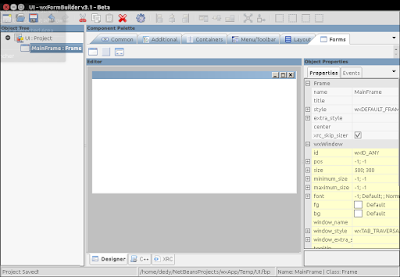
Starting the program and you will be greeted with new blank project with MyProject1 as an intial name.
For easy associating with the UI naming, then I would like to alter this name into UI. Take a look at Object Properties on the right pane, and make change to this properties:
name : UI
file : UI

Then save the project into your netbeans project (let say into folder wxApp) and make the name UI.fbp
Adding Frame
Activate tab [Forms], then select/click Frame to insert it into project and adjust properties:name : MainFrame
title : My wxApp

You basic GUI is now ready and to make a test, just press [F5]

Working with Window Controls
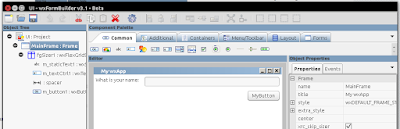
To enrich the GUI and to have full featured application window, you may can follow the step below:
Adding layout:
[Layout] + wxFlexGridSizerAdding Label or StaticText
Properties :
growablecols : 1
[Common] + wxStaticTextAdding TextControl
Properties :
label : What is your name:
[Common] + wxTextCtrlAdding Spacer
Properties :
flag : wxEXPAND [v]
[Layout] + spacerAdding Button
[Common] + wxButtonPreview the Window, press [F5]
Properties :
flag : wxALIGN_RIGHT [v]

Generate C++/wxWidgets codes
After make a GUI design, you may then generate C++ code, just press :[F8] to Generate base class and yield you with 2 files UI.cpp and UI.h. PLEASE DO NOT make any MODIFICATION directly to these files
[F6] to Generate Inherited Class inside the files UIMainFrame.cpp and UIMainFrame.h, on which you will work with directly
Complete File is Here !
Get fresh wxApp from my Github repository, clone to your local folder and try to figure out the files inside this netbeans projects.Happy coding …………………… / Ddy
GUI / RAD / Visual Designer / wxWidgets
Howto Build wxWidgets with MinGW
2:37 AM Dedy Yasriady
This tutorial is intended for the beginner who wish to have wxWidgets up and running in Windows environment. The build using MinGW without Msys.
After completion of installation, please relogin to Windows to make sure path to tdm-gcc applied.


That’s all, the simple steps to build wxWidgets on Windows without Msys. Check the result inside this folder: lib\gcc_lib
Installing Toolchain
Download TDM-GCC from http://tdm-gcc.tdragon.net/downloadAfter completion of installation, please relogin to Windows to make sure path to tdm-gcc applied.
Prepare wxWidgets Source
> Extract wxWidgets-3.0.2.zip into c:\opt\wxWidgets\wxWidgets-3.0.2
> cd \opt\wxWidgets\wxWidgets-3.0.2\build\msw
Build for DEBUG Version
> mingw32-make -f makefile.gcc BUILD=debug UNICODE=1 SHARED=0 CXXFLAGS="-std=gnu++11"
Build for Release Version
> mingw32-make -f makefile.gcc BUILD=release UNICODE=1 SHARED=0 CXXFLAGS="-std=gnu++11"
Final Result is Here
That’s all, the simple steps to build wxWidgets on Windows without Msys. Check the result inside this folder: lib\gcc_lib
How To Configure wxWidgets on Ubuntu
12:40 AM Dedy Yasriady
Configuring wxWidgets into Netbeans is not so complicated, even for those who are new to the application will find the easy way to work with. This short tutorial is intended to guide you to setup wxWidgets on Ubuntu 14.04, thus you can begin to code immediately.
$ sudo apt-get install build-essential
Take a look the simple step, and happy coding with wxWidgets …..
$ sudo apt-get install build-essential
$ sudo apt-get install netbeans
$ sudo apt-get install wxformbuilder
$ sudo apt-get install libwxgtk3.0-dev
Install C++ Plugins
After starting netbeans, then make selection to: Make [Tools] - [Plugins]
Download initial Netbeans project: wxApp.zip, include GUI project by using wxFormbuilder.
How to Build wxWidgets on Windows with MSys/MinGW
12:40 AM Dedy Yasriady
This tutorial will guide you step by step to build wxWidgets-3.0.2 on Windows using MSys/MinGW.


Download and Instal TDM-GCC


Edit C:\msys\1.0\etc using your favorite editor:

Open MSys Command Prompt


$ cd /opt/wxWidgets $ wget http://nchc.dl.sourceforge.net/project/wxwindows/3.0.2/wxWidgets-3.0.2.tar.bz2 $ bunzip2 wxWidgets-3.0.2.tar.bz2 $ tar -xvf wxWidgets-3.0.2.tar $ cd wxWidgets-3.0.2 $ ./configure --enable-debug --disable-shared --with-msw $ make
The library result can be fond here:
C:\opt\wxWidgets\wxWidgets-3.0.2\lib\gcc_lib
How to Setup wxWidgets 3.0.2 with Netbeans 8.0.2 on Windows
12:39 AM Dedy Yasriady
The simple tutorial about How To Configure wxWidgets to work with Netbeans in Windows environment.

Create New C++ Application Project


Mention the project name and UnCheck [ ] Create Main File

Configure C++ Compiler

Enter following information:
Include Directories:
C:/opt/wxWidgets/wxWidgets-3.0.2/include
C:/opt/wxWidgets/wxWidgets-3.0.2/build2/wx3.0.2ud_static/lib/wx/include/msw-unicode-static-3.0
Preprocessor Definitions:
_UNICODE
__WXMSW__
C++ Standard: C++11
Configure Linker
Additional Library Directories:
C:/opt/wxWidgets/wxWidgets-3.0.2/build2/wx3.0.2ud_static/lib
Libraries:
wx_mswu_core-3.0
wx_baseu-3.0
wxtiff-3.0
wxjpeg-3.0
wxpng-3.0
wxzlib-3.0
wxexpat-3.0
wxregexu-3.0
gdi32
comctl32
ole32
uuid
oleaut32
comdlg32
winspool
Additional Options: –mwindows

That’s all
Create New C++ Application Project


Mention the project name and UnCheck [ ] Create Main File

Configure C++ Compiler

Enter following information:
Include Directories:
C:/opt/wxWidgets/wxWidgets-3.0.2/include
C:/opt/wxWidgets/wxWidgets-3.0.2/build2/wx3.0.2ud_static/lib/wx/include/msw-unicode-static-3.0
Preprocessor Definitions:
_UNICODE
__WXMSW__
C++ Standard: C++11
Configure Linker
Additional Library Directories:
C:/opt/wxWidgets/wxWidgets-3.0.2/build2/wx3.0.2ud_static/lib
Libraries:
wx_mswu_core-3.0
wx_baseu-3.0
wxtiff-3.0
wxjpeg-3.0
wxpng-3.0
wxzlib-3.0
wxexpat-3.0
wxregexu-3.0
gdi32
comctl32
ole32
uuid
oleaut32
comdlg32
winspool
Additional Options: –mwindows

That’s all
How to Custom Build wxWidgets 3.0.2 with Linux GNU/GCC
12:34 AM Dedy Yasriady
Here you may follow the steps I used to configure and build wxWidgets-3.0.2 in Linux with Gnu/GCC:
$ mkdir -p /opt/wxWidgets $ cd /opt/wxWidgets $ wget http://ftp.wxwidgets.org/pub/3.0.2/wxWidgets-3.0.2.tar.bz2 $ tar -xapvf wxWidgets-3.0.2.tar.bz2 $ mkdir -p wxWidgets-3.0.2/build2 $ cd wxWidgets-3.0.2/build2
$ mkdir wx3.02ud_static $ cd wx3.02ud_static $ ../../configure –disable-shared –enable-debug $ make $ cd .. The library result is located at: /opt/wxWidgets/wxWidgets-3.0.2/build2/wx3.02ud_static/lib
$ mkdir wx3.02ud_static $ cd wx3.02ud_static $ ../../configure –disable-shared $ make $ cd .. The library result is located at: /opt/wxWidgets/wxWidgets-3.0.2/build2/wx3.02u_static/lib
How To Redirect Log from our Event Handlers to wxTextCtrl
3:55 PM Dedy Yasriady
class MyFrame : public Frame
{
protected:
// Handlers for Frame events.
void m_button1OnButtonClick( wxCommandEvent& event );
public:
/** Constructor */
MyFrame( wxWindow* parent );
//// end generated class members
private:
wxLog *m_logOld;
};
MyFrame::MyFrame( wxWindow* parent )
:
Frame( parent )
{
m_logOld = wxLog::SetActiveTarget(new wxLogTextCtrl(m_textCtrlLog));
wxLogMessage( "This is the log window" );
}
Subscribe to:
Posts (Atom)